Localization
Those outside the United States will probably want dates updated to their local date format. This is accomplished with four simple steps:
Change Locale
This step must be done first.
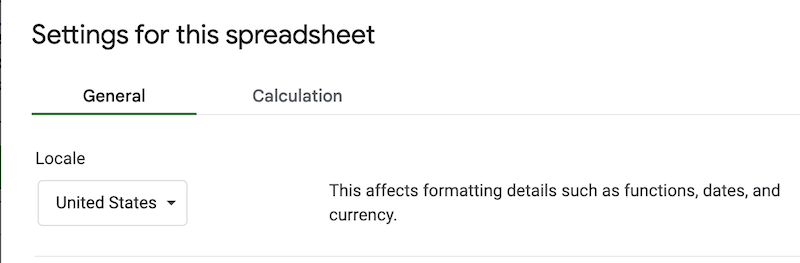
Go to the File > Settings in the Google Sheets file menu. Choose your "Locale" from the dropdown.
Reformat Fiscal Year Date
Go to the Settings sheet. Click the cell with the fiscal year start date in it. Click Format > Number > Date
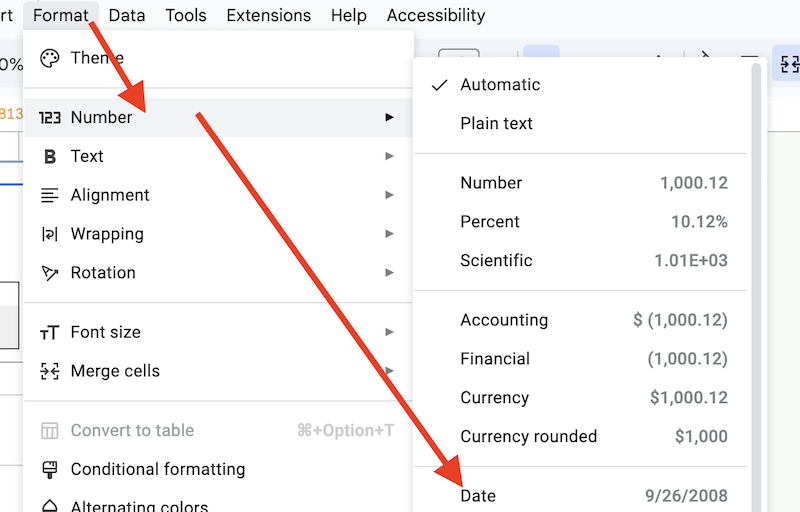
While it may not appear that anything changed (if your fiscal year starts January 1), this will force parts of your reports to display in your newly chosen local format.
Reformat Journal Date Column
Go to the Journal. Highlight the entire date column by clicking the column letter:
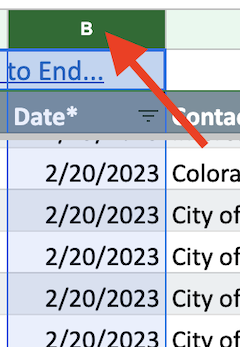
Change the date format using the same method as above: Format > Number > Date. Now, when entering dates in the Journal, enter them in your local format, and the formatting will be retained rather than converted to the USA format.
Reformat Dates in Report Headers
Go to the Translations sheet. Look for the date format mm/dd/yyyy in column B. Change to your preferred date format using the dropdown, or type your own custom date format. This will force dates to display in your local format in report headers.
